Inside the New Google Ads Dashboard: Where Everything Lives Now
Google rebuilt the reporting experience around Gemini this year. Here's exactly where to click, what changed, and how to read it like a strategist instead of a spreadsheet.
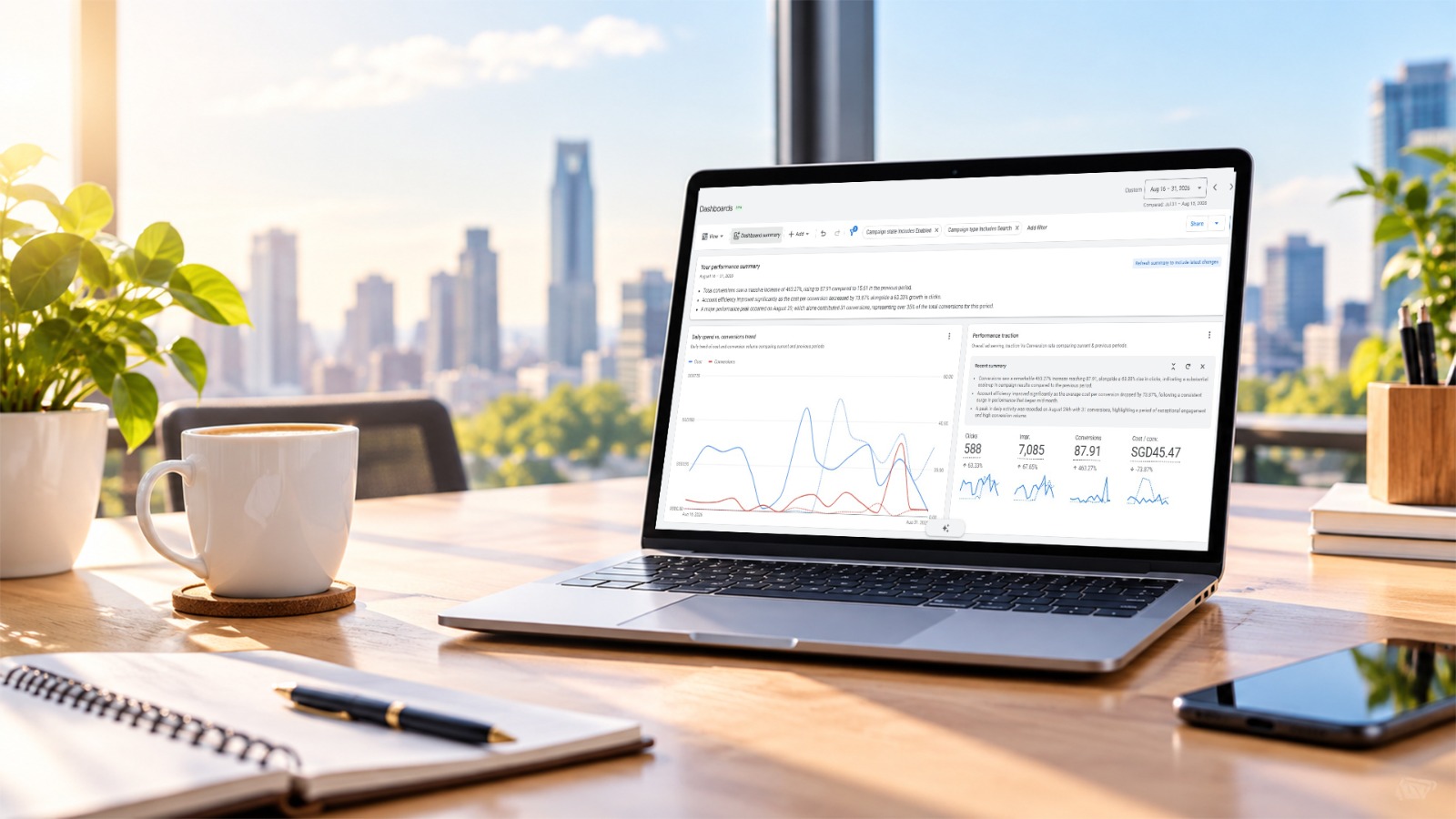
You log into Google Ads and the screen looks different again. A report that used to take three clicks is no longer where you expect it. The homepage now includes AI-generated summaries, and searching for "Google Dashboard" can still send you to your personal Google Account instead of your ad campaigns.
Nothing is broken. Google has reworked the reporting experience around Gemini in 2026. This guide shows you what changed, where the key reports now live, and one common dashboard mix-up to clear up first.
Google Ads Dashboard
Lives at ads.google.com. Shows campaign performance, spend, conversions, Insights, and the new reporting tools powered by Gemini. Built for advertisers and marketers.
Google Account Dashboard
Lives at myaccount.google.com/dashboard. Shows your personal data, privacy, and security settings across Gmail, Drive, and YouTube. Built for any Google user, and it has nothing to do with ads.
What Does a Digital Marketing Strategy Look Like in 2026?
The dashboard is only one part of a wider approach. To drive growth in 2026, a winning digital marketing strategy combines performance-driven paid ads with data-informed reporting. By using AI tools such as Gemini inside Google Ads, marketers can move from manual spreadsheet analysis to prompt-built dashboards, making real-time strategy adjustments based on automated performance summaries and benchmarking. The rest of this guide focuses on the Google Ads side of that approach.
How Do I Navigate the New Google Ads Interface?
Start with the left sidebar. It is your primary navigation menu, and it is where you open Campaigns, Ad groups, Keywords, Ads & assets, and Reports. What has changed is the centre of the screen, which now hosts the new Gemini-powered AI Overview, Insights cards, and dashboards. The next section covers what each of those new areas does.
The Dashboard, Rebuilt Around Gemini
Google spent 2026 reworking reporting from the ground up. These are the changes you'll notice first.
Prompt-built AI Dashboards
A new Dashboards tool lets you type what you want to see, such as "show me mobile conversions by campaign for the last 30 days," and builds the chart for you instead of making you configure the report manually.
The Insights carousel
The old recommendation box has become a set of cards grouped by immediate issues, opportunities, and account-wide trends, making it easier to scan what needs attention.
AI Overview on the homepage
When you log in, you now see a short summary of what has changed since your last visit before you open a report or dig into the numbers.
Ask Advisor, one click deeper
Click a card in the new overview and it opens in Ask Advisor, Google's in-product assistant, with the context from that card already carried across.
Account benchmarking
A new benchmarking view adds context by showing how your account compares with similar businesses, rather than relying only on month-over-month movement.
Alerts you don't have to chase
Performance summaries can now be sent by phone or email on a schedule, so important changes are easier to catch without checking the dashboard manually.
What Are the Best Ways to Use AI to Monitor Ad Performance?
Start with the core metrics that show whether your spend is working: CTR, CPC, and ROAS. Tracking them consistently helps you spot scaling opportunities early and avoid wasted spend, and AI takes much of the manual checking out of that routine.
Let AI Dashboards build the view. Use the new prompt-built AI Dashboards to visualise things like mobile conversions and campaign trends without manual configuration.
Schedule your summaries. Set up scheduled performance summaries by email so you are alerted to key changes without logging in to look for them.
Reading the Dashboard Like a Strategist
The new layout surfaces more data, faster. These are the habits that turn that data into decisions.
The AI Overview and Insights carousel are useful for spotting changes quickly, but they should be treated as a summary, not the final answer. Use them to identify what deserves attention, then check the underlying campaign data before making a decision.
Ask direct questions. A query like "Which campaigns lost conversion rate this week?" can get you to the issue faster than scanning a large table for changes.
Separate issues from opportunities. Deal with tracking, delivery, or performance problems first. Then look at where there may be room to scale.
Use benchmarks alongside month-over-month data. Last month's numbers tell you what changed. Benchmarks can add context around how that performance compares with similar accounts.
Review recommendations before applying them. Some suggestions may involve budget, bidding, or match-type changes that do not suit every account or campaign objective.
From Login to Insight, Step by Step
Whether you manage one account or several, this is the simplest path through the new layout and what to look for on each screen.
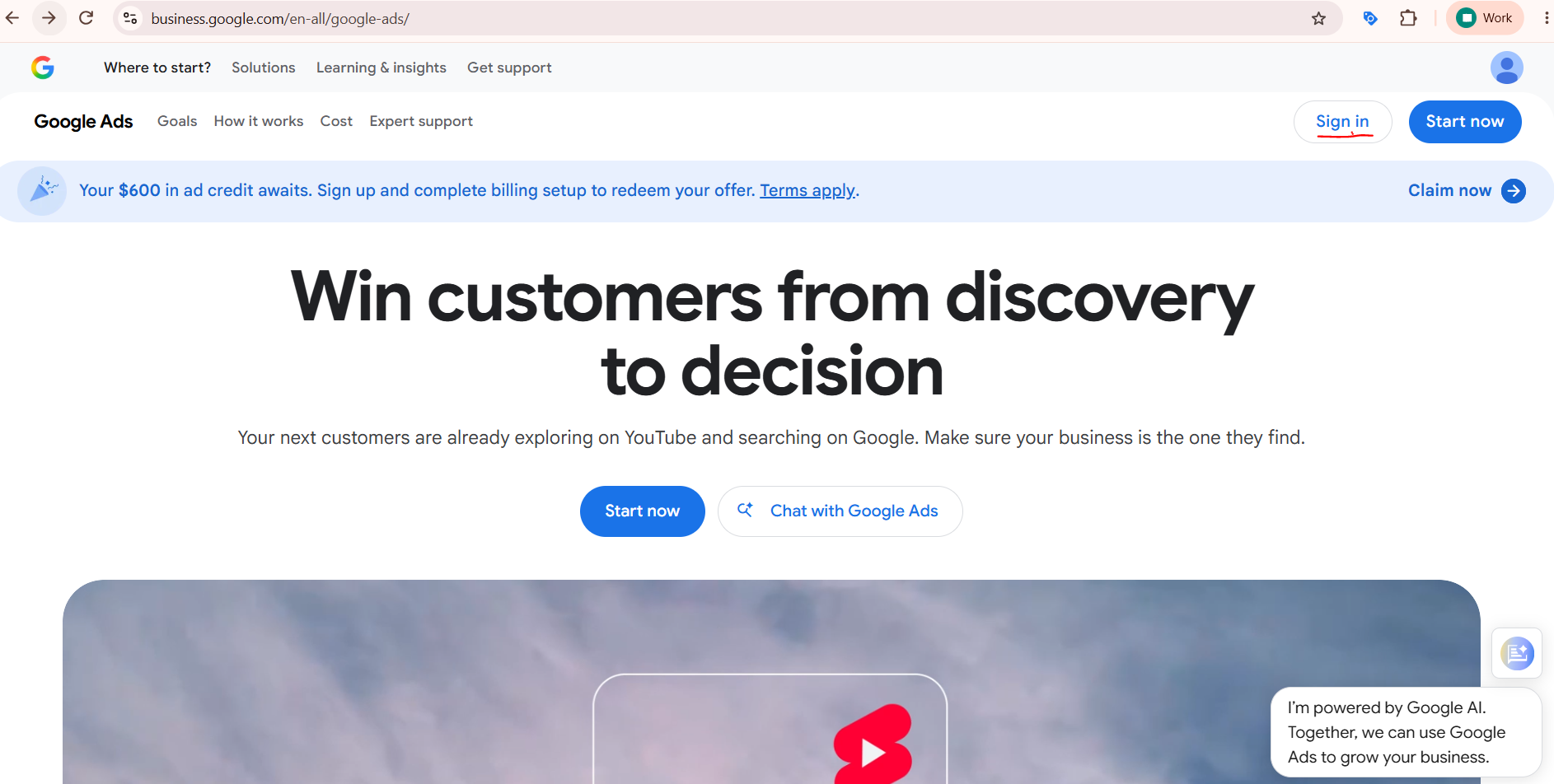
Sign in at ads.google.com
Use the Google account linked to your ad account. If you manage multiple clients or brands, sign in through your Google Ads Manager (MCC) account so you can move between accounts without repeatedly logging in and out.
Land on the Overview page
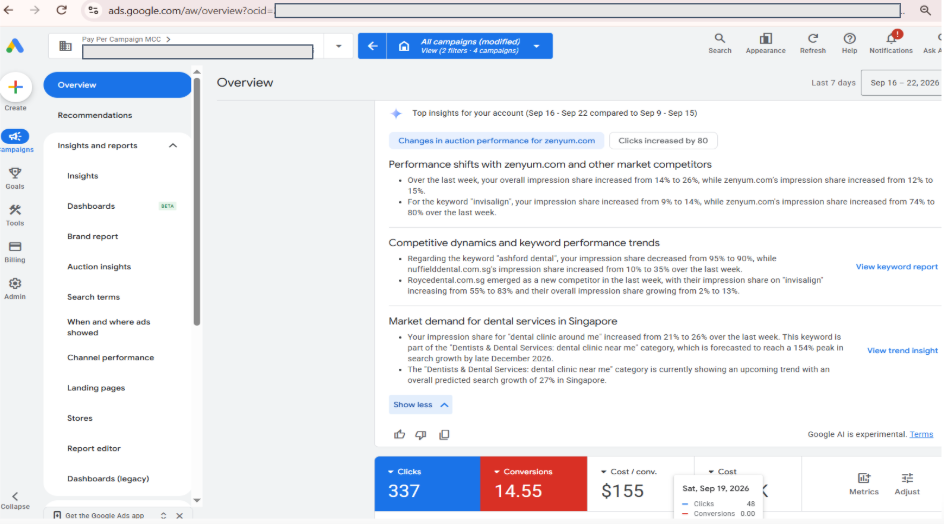
This is your homepage, not a single report. Top to bottom, you'll now find:
- An AI-written summary of what's changed since your last login
- The Insights carousel, with cards for immediate issues, opportunities, and trends
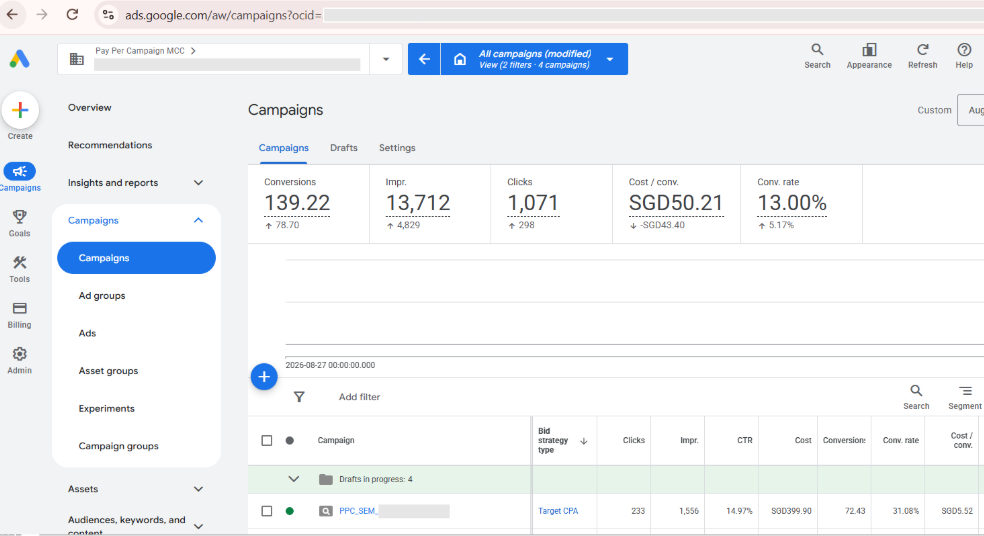
- Key metric cards for cost, conversions, clicks, and impressions across the account
Open Dashboards for prompt-built reporting
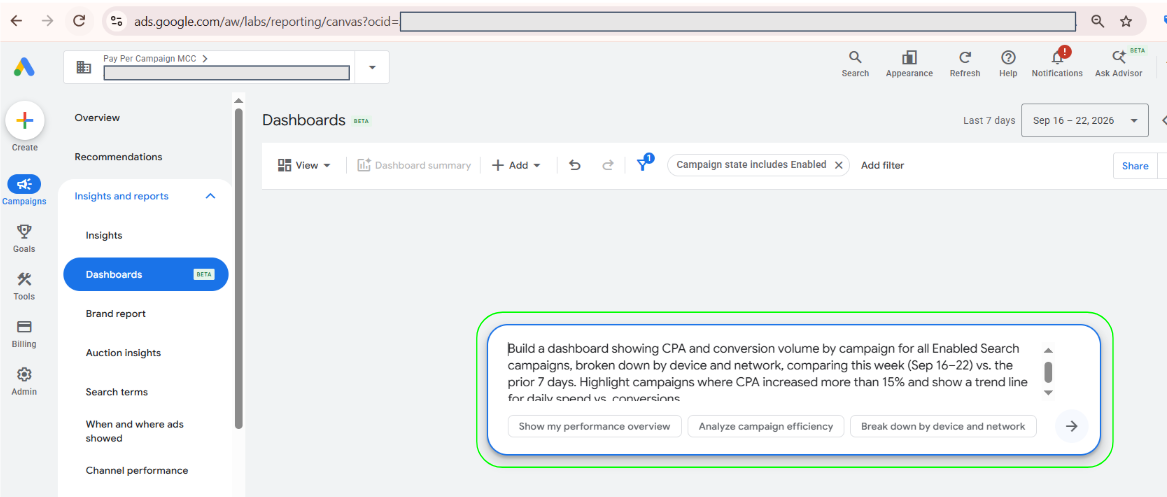
In the left-hand navigation, open Dashboards under Reports. Type a plain-language question by device, campaign, date range, or another useful breakdown, and the tool can build a chart with a short explanation of the movement. If AI Dashboards has not appeared in your account yet, use the standard Reports editor in the meantime.
Check Campaigns for the granular view
The Campaigns tab is still where you manage bids, budgets, ad groups, and keywords. Use the column selector to keep your key metrics visible. Cost per conversion and impression share are two useful columns that are often missed.
Review Recommendations selectively
The Recommendations page still highlights suggested changes. Use it as a checklist to review rather than a list to apply automatically. Budget, bidding, and broad-match suggestions should always be checked against the account's actual goals and performance.
Questions We Get About the New Dashboard
Is the Google Ads dashboard the same as the Google Account dashboard?
No. The Google Ads dashboard (ads.google.com) manages your ad campaigns, spend, and performance. The Google Account dashboard (myaccount.google.com/dashboard) manages your personal data and privacy settings across Gmail, Drive, and YouTube. They share a name, not a purpose.
I don't see the new AI Dashboards yet. Is something wrong with my account?
No. Google began rolling this feature out gradually from August 2026, and it's reaching accounts in stages rather than all at once. The standard Reports builder still works exactly as before while you wait for it to appear.
Do I need to change anything about how I manage campaigns?
Not structurally. The dashboard changes affect how you view and query your data, not how campaigns, bidding, or budgets work underneath. Your existing account structure carries over as-is.
Can I still export reports the old way?
Yes. Standard scheduled reports and exports are still available. The new Dashboards tool sits alongside them as another way to build one-off, ad hoc views.
Should I trust the AI-generated summaries at face value?
Use them as a starting point, not a final answer. They're genuinely useful for spotting what changed quickly, but any budget or bidding decision should still be checked against the underlying campaign data before you act.
Should You Switch to Automated Reporting Tools?
Google's new Gemini-powered dashboard makes analysis inside Google Ads much easier, but it only covers Google Ads. If you also run campaigns on Meta or LinkedIn and track results in GA4, an automated reporting tool can bring those channels into one dashboard that updates on a schedule. That can save your team several hours each week that would otherwise go on manual exports and spreadsheets, and it keeps performance tracking consistent across all of your marketing.
If Google Ads is your only channel, the native dashboard may be all you need. For multi-channel teams, centralised reporting is usually the next step.
Not Sure Your Dashboard Is Telling You the Full Story?
We'll review your Google Ads account, including structure, tracking, and the performance behind the dashboard, then give you a prioritised list of what to fix or improve. Free, with no sales pitch.
Claim My Free $1,500 Audit →